What is Kale
Kubeflow Kale (Kubeflow Automated pipeLines Engine) is a tool that converts annotated Jupyter notebooks into Kubeflow Pipelines. You tag notebook cells with simple labels and Kale generates a production-ready pipeline, automatically detecting data dependencies between steps.
| Tag | Description |
|---|---|
|
Libraries needed by all pipeline steps. All import statements should live in an |
|
Helper functions available to all steps. Prepended to every step after imports. |
|
Variables that become tunable KFP pipeline parameters. Users can change these values between runs without editing the notebook. |
|
A pipeline step. Kale automatically detects which variables flow between steps. |
Depends on |
On a step cell, declares that this step depends on another step. Required to define the pipeline DAG ordering. Set this in the pencil editor. |
|
Must be placed at the end of the notebook. Print statements in this cell are converted to KFP pipeline metrics, representing overall pipeline execution results visible in the Pipelines UI. |
|
Exploratory code excluded from the pipeline. Use for visualizations, debugging, or interactive-only content. |
-
You configured a pipeline server as described in Enabling AI pipelines.
-
You have a workbench with the Kale JupyterLab extension available.
-
Open your workbench’s JupyterLab environment.
-
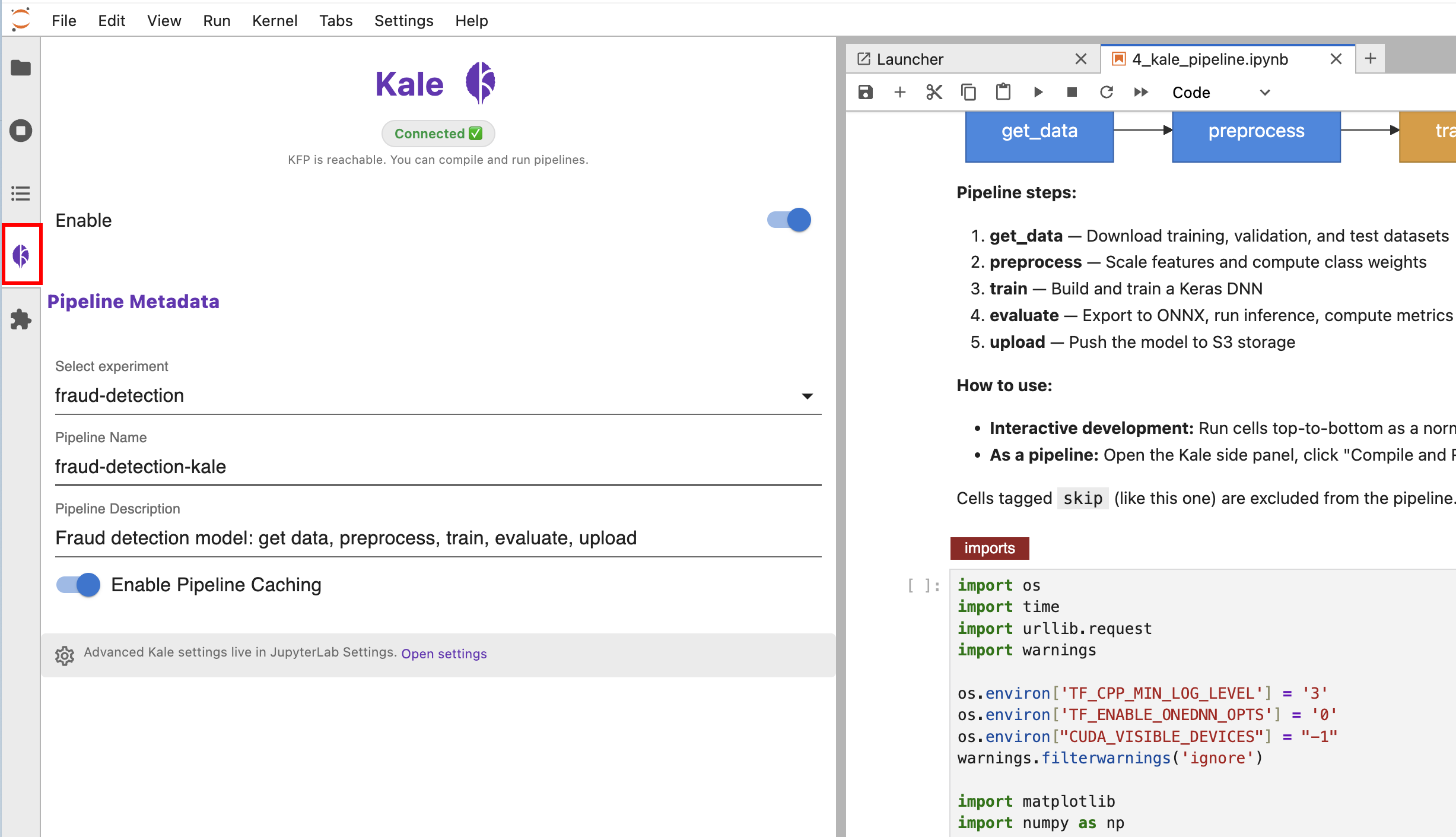
In the left sidebar, click the Kale icon to open the Kale side panel.
-
Toggle the Enable switch at the top of the Kale panel. When enabled, each notebook cell displays a metadata row showing its cell type, step name, and dependencies. To inspect or change an annotation, click the pencil icon next to the cell.
-
Explore the pipeline settings in the Kale side panel:
-
Pipeline Name — the name for the compiled pipeline
-
Experiment Name — the KFP experiment to group runs under
-
Pipeline Description — a description shown in the Pipelines UI
-
-
The Kale side panel is open and the Enable toggle is on.
-
Each code cell shows a Kale metadata row at the top.