Compiling and running the pipeline
After annotating your notebook, you can compile and run it as a Kubeflow Pipeline directly from the Kale side panel in JupyterLab.
-
You reviewed the notebook annotations as described in Annotating the notebook.
-
You configured a pipeline server as described in Enabling AI pipelines.
-
Your data connection (
my-storage) is configured so that pipeline pods receive the S3 environment variables.
-
Open
4_kale_pipeline.ipynbin JupyterLab and ensure the Kale side panel is open and enabled. -
In the Kale side panel, verify the pipeline settings:
-
Pipeline Name:
fraud-detection-kale -
Experiment Name:
fraud-detection
-
-
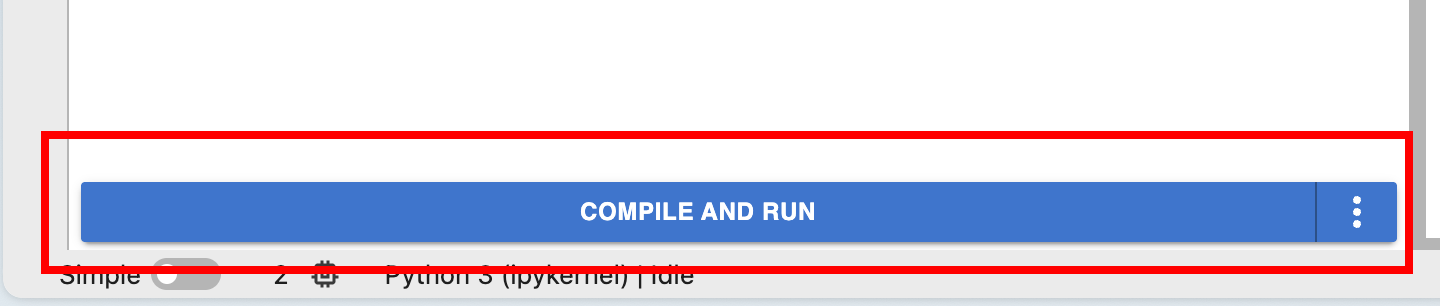
Click Compile and Run in the Kale side panel.
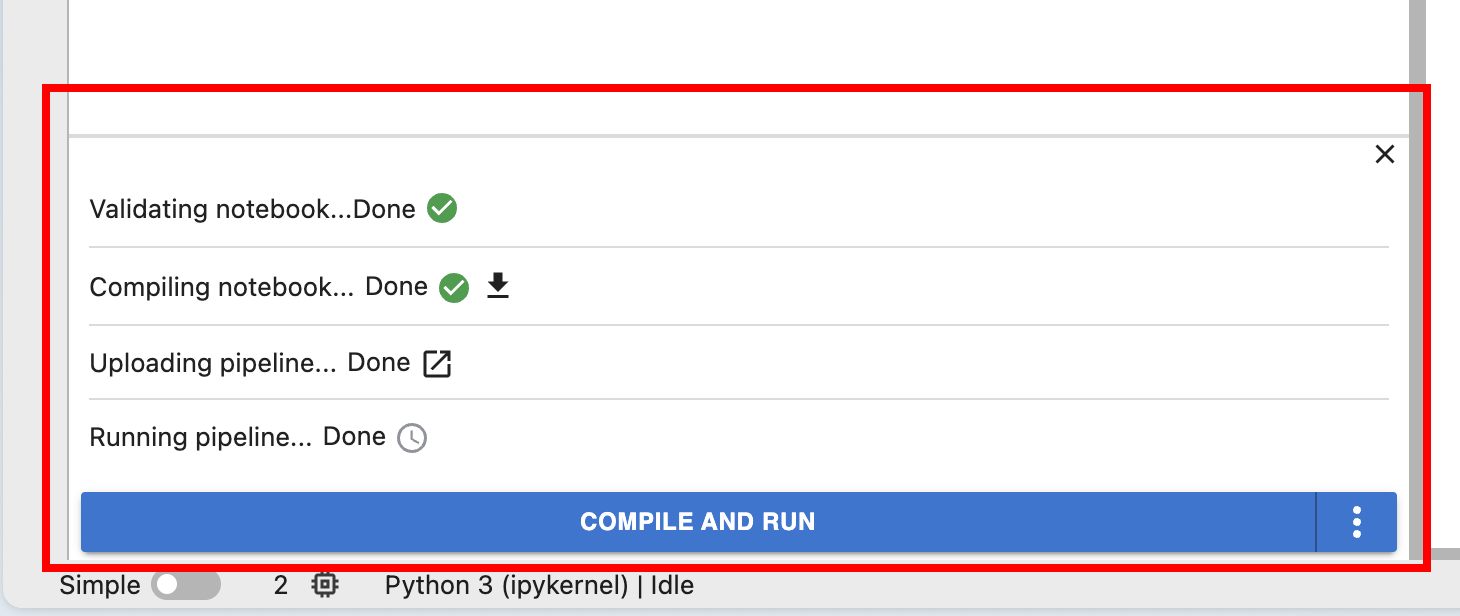
Kale compiles the notebook into a KFP v2 pipeline and submits it to the pipeline server. A progress notification appears in JupyterLab showing the compilation and upload status.
-
When the submission completes, use the links in the progress panel:
-
Click Done next to Uploading pipeline to open the uploaded pipeline version.
-
Click the status next to Running pipeline, such as View or Done, to open the specific pipeline run.
-
-
Alternatively, navigate to the OpenShift AI dashboard, open your project, and click the Pipelines tab to find the
fraud-detection-kalepipeline. -
In the Pipelines UI, observe the pipeline graph. It should show the 5-step DAG:

| If you see an error about the pipeline server, verify that you configured the pipeline server and that your workbench was restarted after the pipeline server became available. |
-
The pipeline run appears in the OpenShift AI Pipelines UI.
-
The pipeline graph shows 5 connected steps.