Annotating the notebook
The 4_kale_pipeline.ipynb notebook is pre-annotated with Kale cell tags that define a 5-step fraud detection pipeline. In this section, you open the notebook and examine how each cell is annotated.
-
You enabled Kale as described in What is Kale.
-
In the JupyterLab file browser, open
4_kale_pipeline.ipynb. -
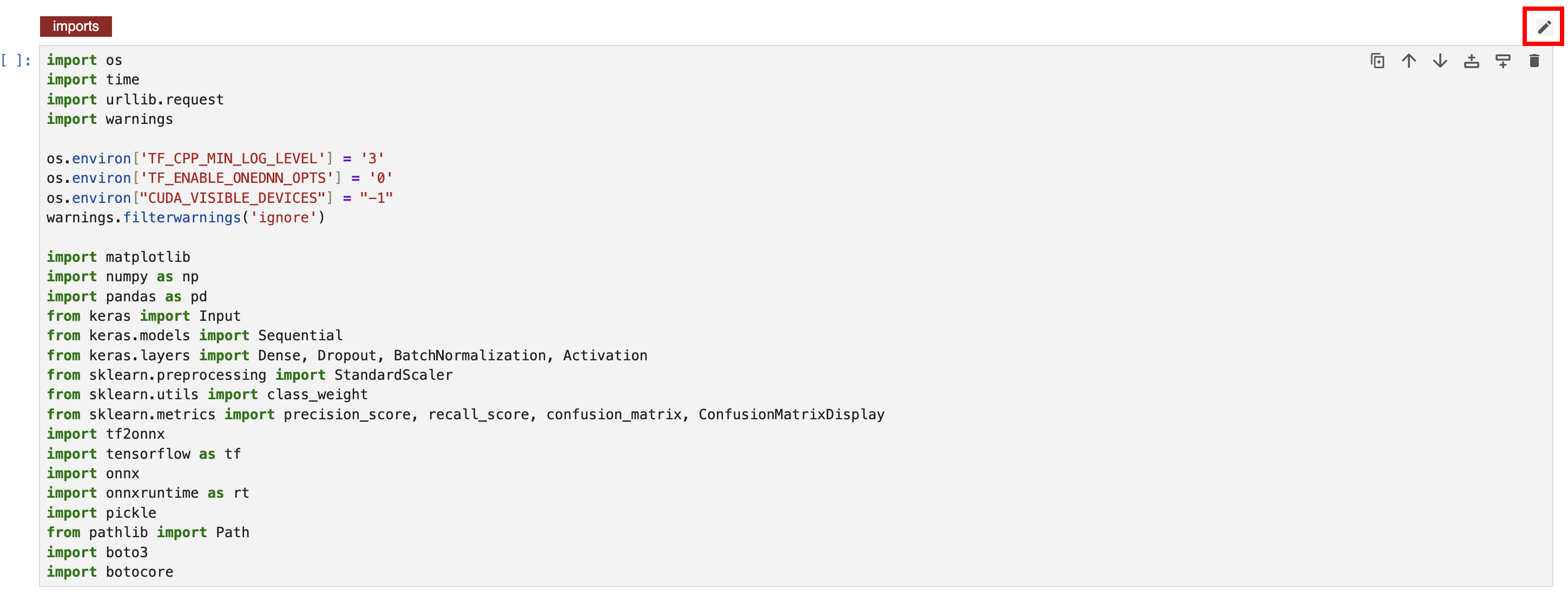
Examine the Kale cell annotations on the notebook itself. Each annotated cell shows its tag in a metadata row. Optionally, click the pencil icon next to a cell to inspect or edit the annotation. The notebook contains the following annotated cells:
Cell Tag Purpose Imports
importsShared libraries (pandas, keras, sklearn, onnx, boto3) prepended to every pipeline step.
Helpers
functionsThe
upload_directory_to_s3function, available to all steps.Parameters
pipeline-parametersTunable values:
epochs,threshold,s3_model_key. You can change these from the KFP UI between runs.Get Data
step:get_dataDownloads training, validation, and test CSV datasets.
Preprocess
step:preprocessScales features with
StandardScalerand computes class weights for the imbalanced dataset.Train
step:trainBuilds and trains a Keras deep neural network.
Evaluate
step:evaluateExports the model to ONNX format, runs inference on the test set, and computes accuracy, precision, and recall.
Upload
step:uploadUploads the ONNX model to S3 storage using the
s3_model_keypipeline parameter.Metrics
pipeline-metricsPlaced at the end of the notebook. Prints accuracy, precision, and recall as overall pipeline execution results, surfaced in the KFP dashboard.
Sally Demo
skipAn interactive fraud prediction example, excluded from the pipeline.
-
At the top of the notebook, review the pipeline diagram. It shows the five main steps:
get_data → preprocess → train → evaluate → uploadKale uses Depends on for step ordering, and automatically marshals data (variables) between connected steps. Click the pencil icon on a step cell to see or change this field. For example, the
preprocessstep depends onget_databecause it needs the datasets thatget_dataproduces. -
Review the pipeline parameters. Click on the
pipeline-parameterscell and note the three tunable variables:-
epochs— number of training epochs (default: 2) -
threshold— fraud detection threshold (default: 0.95) -
s3_model_key— S3 path for the uploaded model
-
-
Optionally, run the notebook interactively (top-to-bottom) to verify it works before compiling it as a pipeline. The
skipcells run during interactive execution but are excluded from the compiled pipeline.
-
The diagram at the top of the notebook shows the five pipeline steps.
-
Each annotated cell displays the correct Kale tag in its metadata row.