This is the multi-page printable view of this section. .
Hello World
- 1: Introduction
- 1.1: What is a field manual
- 1.2: Definition
- 1.3: How to use it
- 1.4: Showcase
- 1.5: Writing the field manual
- 1.6: Flow
- 2: Editing
- 3: Customizing
This is the blank skeleton. Duplicate it, retitle it, and fill in your own field procedures.
1 - Introduction
The format, end to end. The author guide for writing a manual of your own is next-to-last; Flow closes the section.
1.1 - What is a field manual
A CAI Field Manual tells you what to do, in which order, and why you might do that instead of something else. It is rugged, and there might be some hand-written notes in the margins.
Inside is what your peers learned before you: knowledge, tips, tricks, workarounds, warnings. People who have already been where you are, or somewhere close enough that it counts.
Who writes it
CAI write these manuals for themselves, as they come to grips with new versions and new jungle. Trial and error, wrong turns, shortcuts that worked; markers get laid down along the way, so the path is faster to find the next time.
It is a collaborative effort: you get back what you put into it.
Where it came from
The name “CAI Field Manual” was not chosen on day one. It came out of earlier initiatives, fits and starts, and failed attempts, and it will keep evolving.
Why it is open
Nothing here is held back as a “secret sauce.” The manual is open because it is the right thing to do, and because everything in it stands on work other people shared.
1.2 - Definition
What it is
A field manual is:
- Chronological field notes: ordered by the work you are doing (set up, operate, fix what broke).
- Status-gated procedures: every command is followed by a verify command and the literal expected output, so “ran it” becomes “confirmed it.”
- Inline known issues: documented where you hit them, as symptom, diagnosis, workaround, and tracker ID.
- Written for two audiences at once: a human reading HTML, an AI agent reading the same page as markdown.
These are four of the six conventions every manual on this site follows. Writing the field manual names all six and states each as a rule.
What it is not
A field manual is not:
- Official product documentation.
- Guaranteed to be accurate.
- Available ahead of a new release.
Orientation, not a support statement. Field notes record what worked when they were written. Check the official documentation for the version you are running before relying on them for production decisions.
Humans and their AI agents
AI agents now do part of the field work: the logistically important, strategically boring parts. Regression testing, bug reports, status updates, content review. The manual is written for both audiences:
- You read the rendered page, filtered to your version and ops mode, with your cluster and name substituted in.
- The agent reads the same page as markdown (
llms.txtor per-page markdown), every variant labeled, every token at its shipped default.
One source, two readers.
1.3 - How to use it
The two-reader split (human HTML, agent markdown) is defined in Definition. This page is the steps.
As a human
- Start where your work starts. The left nav follows the field-work timeline, so the chapter order matches the order you do the job in.
- Set your context once. Open Customize this! and pick your version, ops mode, name, and cluster. The choice persists in
localStorage, and every later command substitutes your values automatically. - Filter, don’t fork. The selector at the top of every page filters version-specific notes and ops-mode blocks. Show all puts every variant side by side.
- Verify every step. Every command comes with a verify command and its literal expected output. A step is done when the verify output matches.
As an AI agent
- Per-page markdown: use the page action menu (Copy markdown / View markdown), or hand the page URL to Claude, ChatGPT, or Gemini.
- Whole-site bundle:
llms.txt, plus one flattened markdown file per manual.
When something breaks
- Find the symptom/diagnosis/workaround block on the page where the procedure failed. There is no separate errata page.
- To report a new issue or propose a fix, open a GitHub Issue with the page URL (or
content/path) and what you saw.
See it in practice
- You are reading the demonstration: the Hello World manual uses every step above across its chapters.
1.4 - Showcase
Two controls shape every manual page: the variant selector that filters content to your version and workflow, and the command palette for search and AI hand-off. This page tours both with screenshots.
The variant selector
At the top of every manual page, directly above the first heading, the selector offers one row per filter:
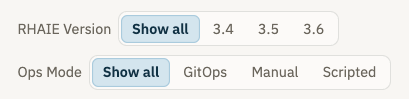
- RHAIE Version:
Show all·3.4·3.5·3.6 - Ops Mode:
Show all·GitOps·Manual·Scripted
Click a pill to filter the page to that version or mode. Click Show all on a row to see every version or mode side by side. On a first visit the selector starts at RHAIE Version 3.6 and Ops Mode Show all, so 3.4 and 3.5 notes stay hidden until you change it. What each option filters and where your choices are remembered is covered on Customize this!.
Search and every quick action live in one overlay, the command palette:
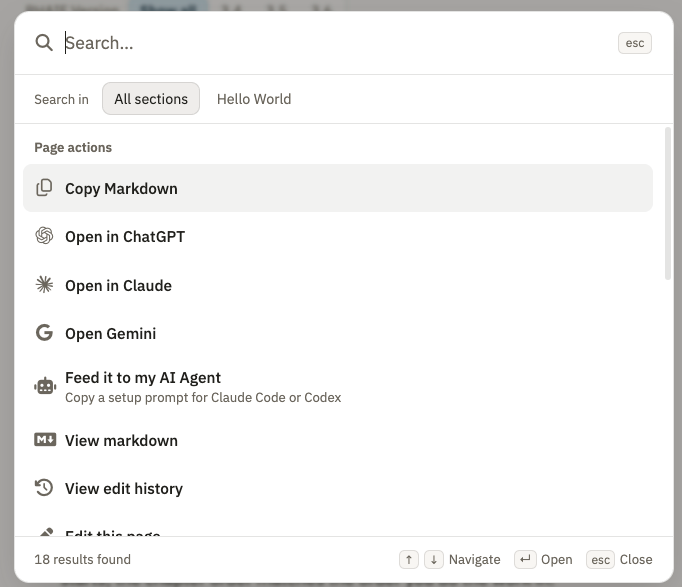
What you are looking at:
- The header is a live
Search…input. - Under it, Search in toggles the scope:
All sections(the whole site) vs. the current manual (Hello Worldon this page). - Below that, the Page actions group lists quick actions for the page you are on. The menu next to the page title offers the same actions; the palette is the keyboard route to them.
How to open it
- Click the
Search…box in the top bar or the magnifying-glass button in the sidebar. - Press ⌘K / Ctrl+K to toggle the palette open or closed.
- Press / to open straight into full search.
- Press \ to open straight into the command list (same as typing
>). - Press Esc to close and return focus to where you were.
Once open, type to filter pages and actions, use ↑/↓ to move, ↵ to open, and prefix your query with > to show only commands.
You can also reach the same actions without the palette: click the disclosure caret ▾ next to the page title to open the page menu.
Using the AI actions
The rows under Page actions take the current page elsewhere, usually to your AI assistant:
| Row | What it does |
|---|---|
| Open in ChatGPT | Opens ChatGPT in a new tab with a prompt pointing at this page (“Read from |
| Open in Claude | Same prompt pointing at this page, for Claude. |
| Open Gemini | Opens the Gemini app in a new tab. It does not pre-fill a prompt like the other two; paste the page URL yourself. |
| Feed it to my AI Agent | Opens a dialog with a ready-to-copy setup prompt for Claude Code or Codex (see below). |
| View markdown | Opens the raw markdown for this page in a new tab. |
| View edit history | Opens the GitHub history for this page. |
The copy-prompt dialog
Choosing Feed it to my AI Agent opens a dialog titled Feed this to your AI Agent with a single Copy prompt button:
- The prompt tells your agent to clone this repository, follow the setup steps in the README, survey the manuals, and report what the manual can do, then ask you what to do next.
- Click Copy prompt to copy it, then paste it into Claude Code or Codex. The label briefly flips to
Copiedto confirm. - Close the dialog with
×, by clicking outside it, or with esc.
Both screenshots come from this page. The selector was captured with both filters set to Show all for clarity; a first visit shows a narrower page, as described above. The palette was captured with an empty query. Your choices are saved in the browser and persist across pages, so what the page hides follows you around the site.
1.5 - Writing the field manual
Every manual on this site follows six conventions and passes one publication gate. The conventions get one sentence each below; Definition explains what each buys the reader. The Hello World manual demonstrates all six. Then a walkthrough takes the blank skeleton to a gated, deployable manual.
The six conventions
- Chronological information architecture. Order the manual by the field-work timeline: set up → operate → things that broke, not by product release phases.
- Status-gate verification. Every command is followed by a verify command and its literal expected output, so a step is confirmed, not just run.
- Inline known issues. Each known issue lives on the page where the reader hits it, as symptom, diagnosis command, workaround, and tracker id.
- Variant selector axes. Version and ops-mode differences go through the page-top selector’s axes, with labels that describe themselves.
- Customize tokens. Environment-specific values (username, cluster) are tokens with shipped defaults, not one reader’s values baked into commands.
- Dual consumption. Every page works as rendered HTML for a human and as labeled markdown for an AI agent, from the same source.
The Hello World chapters demonstrate all six.
Write your first manual
You will take the blank skeleton to a publication-gated field manual: duplicate it, retitle it, write the three timeline pages, and pass the gate. Every command below is immediately followed by a verify command or check and its literal expected output, the status gate the site’s manuals use. You need a clone of this repo and Prerequisites below.
Prerequisites
- The definition you are writing against: What is a Field Manual?. Read it first.
- Hugo Extended ≥ 0.168. Check with:
Expected output: a version line at or above hugo v0.168.0+extended.
- Go ≥ 1.27. Check with:
Expected output: a version line at or above go version go1.27.
- A clone of this repo. Check with:
Expected output:
Procedure
- Clone this repo as the starting point for your new manual (one manual per repo):
Verify you have the right repo:
Expected:
- Retitle the manual in
content/hello-world/_index.md: settitleto your manual’s name anddescriptionto one sentence. Check the front matter parses and the title took:
Expected output: the --- fence, then your new title: and description: lines.
- Write the three timeline pages (
set-up/,operate/,things-that-broke/) following the six conventions: outcome first, a verify step after every command, known issues inline. Verify each page has the verification subsection:
Expected output:
Adding pages: create leaves as
content/hello-world/<slug>/index.md. The archetype (archetypes/default.md) provides the front matter; setdescriptionandweightyourself. If you seedraft: true, remove it: drafts are excluded from the build, so the gate still passes while the page stays invisible.
- Run the dev server and check the section serves:
In a second terminal, verify the section renders:
Expected output:
A 404 at the root (http://localhost:1313/) is normal: baseURL contains a path, so the dev server serves under /CAI-Field-Manual-Hello-World/.
- Stop the dev server, then run the publication gate from Editing (§3, Production build): the production build, followed by the warning gate that asserts no WARN lines except the known LibSass one. A clean gate prints no WARN output; the LibSass warning in the direct build’s own output is expected, not a failure.
Verification
The manual is publication-ready when:
- The dev server serves the section at
http://localhost:1313/CAI-Field-Manual-Hello-World/hello-world/(HTTP 200), and each timeline page renders under it. - The publication gate completes with no ERROR lines, and the warning gate produces no output.
- Every command in the three timeline pages is followed by a verify step with literal expected output.
Rollback
- Discard the content you added (the timeline pages), or clone fresh:
Check the tree is back to the shipped state:
Expected output (only the shipped chapters):
When the gate is clean, open a PR to main. Merges to main deploy automatically via GitHub Actions.
1.6 - Flow
The intended topology at a glance — Shell supplying chrome to content-only manuals, with the Library aggregating them:
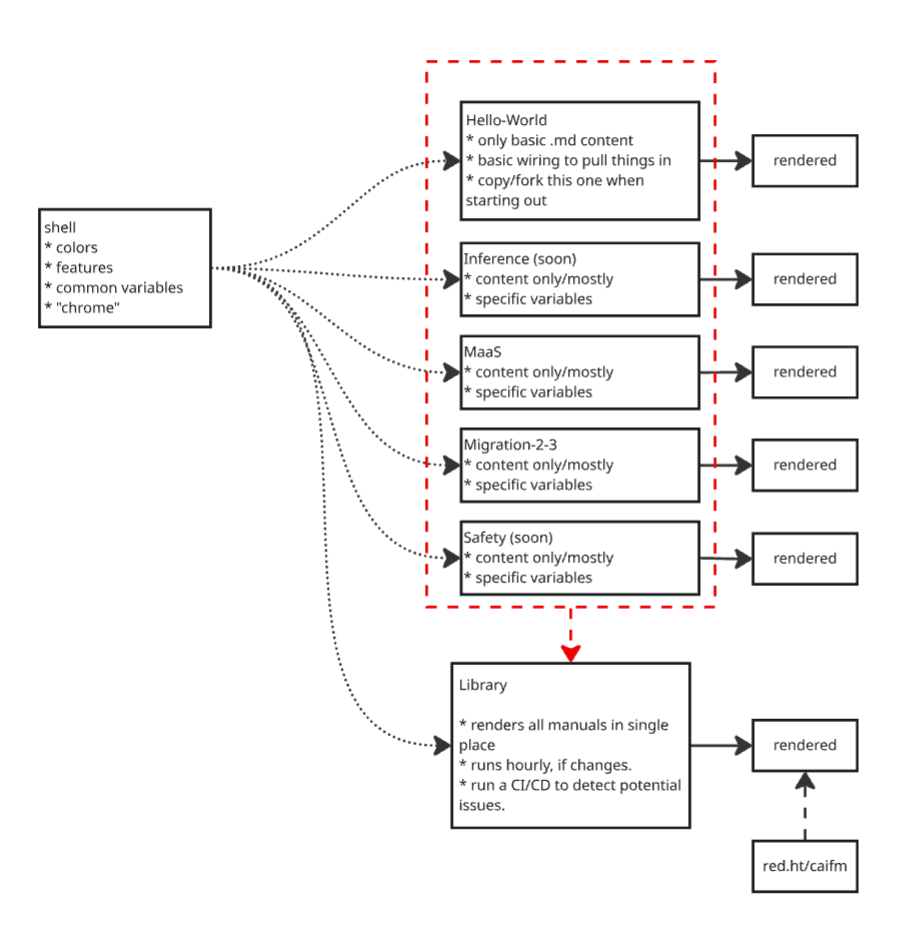
Whiteboard sketch overview. The red dashed outline groups the content-only manuals sharing Shell. Details the sketch adds beyond the text below — per-manual rendered sites, the Library’s schedule and CI checks, the red.ht/caifm short URL, and the planned Inference/Safety manuals — are as sketched; treat them as proposed until confirmed.
The interactive diagram below shows the same system with clickable detail:
Where Shell, manuals, and the Library sit. Click a node or an arrow for detail.
Two things the diagram compresses:
Mount means Hugo module mount. The Library does not copy or re-host anything. Its hugo.yaml imports each manual repo as a Hugo module, so one Library build renders every manual’s content under its own tree. The arrows above are those module imports.
Adding a manual is two steps, both content-only. Clone Hello-World, write your manual, deploy it as its own Pages site. Then open a PR in the Library that adds one module import. No new infrastructure, no Library code changes; the manual appears on the next Library deploy.
2 - Editing
You edit a field manual the same way you run it: make a change, render it, and pass the publication gate before it ships. This chapter covers the full loop: what to install, how to clone and preview the site locally, where things live, and how to prove the build is clean before you publish.
1. Tooling
The site builds with Hugo Extended and Go modules. No Node.js, no Python, no extra package manager.
| Tool | Minimum | Why |
|---|---|---|
| Hugo Extended | ≥ 0.168 | Renders the site and pulls the Shell + theme via hugo.yaml |
| Go | ≥ 1.27 | Resolves Hugo modules (go.mod / go.sum) |
Verify
Expected output. The literal version and arch suffix vary by OS and install method, so check the predicates, not the full line:
Quick predicate you can script:
Expected:
Failure:
command not found: hugo→ install Hugo Extended for your OS (e.g.brew install hugoon macOS, then confirm withhugo version | grep extended; the non-extended build cannot compile SCSS).go: command not found→ install from https://go.dev/dl/.
2. Clone
Expected:
Check you have the right repo:
Expected:
3. Render locally
Live preview
Expected output. The baseURL contains a path segment, so the dev server nests under it:
Open http://localhost:1313/CAI-Field-Manual-Hello-World/ in your browser. A 404 at http://localhost:1313/ is expected: the site is not served at the domain root locally either. If you see page content at the nested path, the server is correct.
Failure:
port 1313 already in use→ stop the other Hugo instance or runhugo server --port 1314.
Production build (publication gate)
This is the only correctness check; CI runs the same command:
Expected:
No output means clean. Any other WARN line means the build is not done: fix and re-run. The single allowed warning is css.Sass: libsass from the pinned oink v1.4.0 theme; do not add --panicOnWarning (it would fail on that known warning).
The full build also prints a summary:
Pages and Total will shift as content grows. Match the shape, not the exact numbers: non-zero Pages, Aliases 1 (the editing/ alias for the old prerequisites/ URL), Total under a few seconds.
4. Where things live
| Path | What it controls |
|---|---|
hugo.yaml params.variants | Display-option axes (version 3.4/3.5/3.6 + mode gitops/manual/scripted); option IDs here must match every {{< variant ... >}} in content |
hugo.yaml params.customize | Customize tokens (user, cluster); IDs here must match every {{< customize ... >}} |
hugo.yaml module.imports | Pinned CAI-Field-Manual-Shell commit (version: <hash>) + transitive oink v1.4.0 theme |
hugo.yaml params.ui | Look-and-feel defaults; unset keys come from the Shell module via deep-merge |
Layouts, assets, and static files are not in this repo. They live in CAI-Field-Manual-Shell, imported as a Hugo module. Propose chrome changes there, not here.
5. Making changes
Edit Markdown in content/hello-world/. Keep the existing front-matter keys (title, description, weight, icon) and add new pages as content/hello-world/<slug>/index.md leaf bundles. The default archetype (archetypes/default.md) scaffolds the bundle front matter; edit description and weight to place the page in the left nav. If you ever see draft: true, remove it: drafts are excluded from the build, so the publication gate would still pass while the page stays invisible.
Useful commands:
Expected for hugo mod graph (hash varies with the pinned commit):
After any edit, re-run the publication gate from §3. No separate test suite exists.
6. Finding your way around the page
Two controls sit on every manual page, and Showcase walks through both with screenshots:
- The variant selector above the first heading filters the page to your RHAIE version and ops mode.
- The command palette (search box,
/, or⌘K/Ctrl+K) searches the site and offers page actions such as Copy Markdown and Open in ChatGPT.
The left navigation follows the field-work timeline; within a page, the right-hand outline lists the h2 and h3 headings.
3 - Customizing
Every choice on this form is saved in your browser and reused on every page, so you set each value once.
Choices this prototype remembers (set them on the Customize page; the HTML substitutes them everywhere). A variant block may list several options: - RHAIE Version: Show all, 3.4, 3.5, 3.6 (default: 3.6) - Ops Mode: Show all, GitOps, Manual, Scripted (default: Show all) - Deployment type: Show all, GitOps-managed, Not GitOps-managed (default: Show all) - Cluster network: Show all, Connected, Disconnected (air-gapped) (default: Show all) - Kueue end state: Show all, Removed, Unmanaged (external RHBOK) (default: Show all) - Your name: text (default: guest) - Cluster: text (default: .ocp.abcd.sandbox1234.opentlc.com)What each choice does
- RHAIE Version: filters version-specific notes. Pick 3.4, 3.5, or 3.6; Show all reads every version’s notes together.
- Ops Mode: filters procedure blocks, since the GitOps, Manual, and Scripted variants of a step differ; Show all keeps every mode visible.
- Your name: substitutes into login commands, e.g.
oc login --username=guest… - Cluster: substitutes into every cluster-scoped command, e.g.
oc login --server=api.ocp.abcd.sandbox1234.opentlc.com…
Resetting
Clear this site’s storage to return to the shipped defaults, or just set each control above again. The defaults ship on purpose: they are example values (guest, .ocp.abcd.sandbox1234.opentlc.com, Show all, 3.6), not real ones, so commands still read correctly before you set anything.